Newsletter
Newsletters (or EDM) can be created and sent out using Newsletter plugin, and comes with a few custom developed blocks for SIMC. The blocks, used to create a newsletter, is similar to Gutenberg blocks.
Managing subscribers
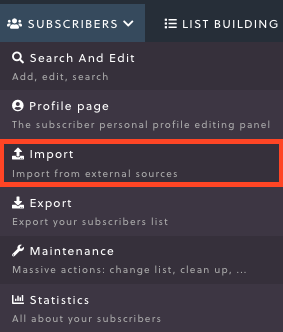
To add a subscriber to your newsletters, head over to Newsletter > Subscribers. There you will be able to see your entire list of subscribers. Subscribers managed by the Newsletter plugin are all stored under one database. To import subscribers, you will need to click on the Subscribers dropdown, and select Import. The plugin accepts a .csv file with the following format:
email[separator]first name[separator]last name[separator]gender
e.g.
email1@example.com;first name 1;last name 1;m
email2@example.com;first name 2;last name 2;f
In order to finetune who you send your newsletters to (e.g. a newsletter might go to just Mediators in Singapore), you can create lists.
Managing a list
You can see all your lists here. This can also be accessed via the List Building > Lists dropdown. Note that to see all the options for lists, you need to select All languages for WPML. This is to maintain compatibility with WPML, which is used for translating the site to other languages.

Lists allow you to specify a subset of subscribers so as to faciliate sending of newsletters. An example would be mediators who practise in Singapore.
Creating a newsletter
To create a newsletter, head over to Newsletter > Newsletters and click on New newsletter. Once there, use the Responsive Drag & Drop Composer, and select Start with an empty project.
On the right, there are blocks that are in a darker shade of blue, without icons. These are the blocks developed by Sulphur specifically for SIMC. You can drag and drop them into the editor, like the Gutenberg editor, and customise the options.
The order of the blocks from top to bottom should be SIMC Logo, George's Message (if any), Single Post (repeated as desired), and Footer. When you hover over the blocks, you will be able to click on the edit icon to edit the block itself, and select various options.
Sending a newsletter
Once you have designed the newsletter, you will be able to specify lists you want to send to, as well as genders. You can also preview the newsletter under the Preview tab, but do note that this will not be 100% accurate as email clients differ greatly in their implementation of the HTML standard and will have wild variation in displaying the email.
Leaving all multichoice options unselected is the same as selecting all of them.
Once you have selected the list(s) of subscribers to send to, you can either select Send now or Schedule it for later. Note that the newsletter sending will be throttled so as to not register as spam to providers like Gmail.