Panelists
A Panelist is a person listed under the "Mediators" dropdown, whether is it an ambassador, industry expert, or others.
Adding a Panelist
When you add a panelist, there are some information you will need to fill in.
- Name — Name of panelist
- Job Title — This is optional; if the panelist does not have a job title, this can be left empty.
- Nationality — The nationality of the panelist.
- Country — The country(ies) that the panelist is active in. Feel free to select as many as needed.
- Area of Expertise — The panelist's area of expertise. To add / remove these, please head over to Custom Fields > Field Groups > Panelist Meta. Click on
Area of Expertiseand you will be able to add or remove the choices available. In general, it is not recommended to remove anything as it might cause errors with existing data. To add more choices, simply add it on a new line. Once done, click onUpdateon the right sidebar. - Sector - The sector(s) the panelist is active in. You can select as many as needed. Once again, to edit the choices available, please head over to Custom Fields > Field Groups > Panelist Meta, and click on
Sector. Add any sector on a new line. Please note that the choices will be automatically arranged alphabetically. - Language — Language(s) the panelist is fluent in. You can select as many as needed.
- Active since — Year from which the panelist is active since.
- CV — The panelist's CV, only in .pdf.
- Video — Video featuring the panelist, if any.
- Type — This is the primary classification of the panelist. To add new types, please head to Panelist > Types, and it will be shown on the right sidebar. You can select as many as needed.
- Panelist Photo — You can also upload a portrait of the panelist, and it will be visible in
Professional Development.
Editing Professional Development filters
The filters in the Professional Development page can be adjusted via the admin panel, under Search & Filter > Panelist search. Scroll all the way down to the bottom, and you will see a box called Search Form UI.
You can drag and drop the fields already present to rearrange them. To add more fields into the filter, drag and drop the Post Meta field into Search Form UI. If you wish to add more filters (like for example, a panelist's favourite fashion brand), you need to first add it as a new custom metadata field.
 The "Post Meta" field allows you to add custom post meta to the panelist filters.
The Post Meta field have a couple of options available:
-
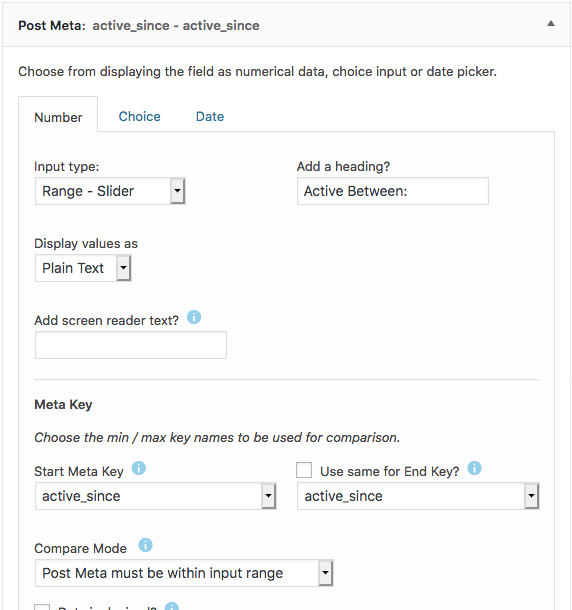
Numbers — This allows you to display a filter to select a range of numbers. For example, the "Active between" filter uses the "Range - Slider" input type to display a slider for the visitor.
-
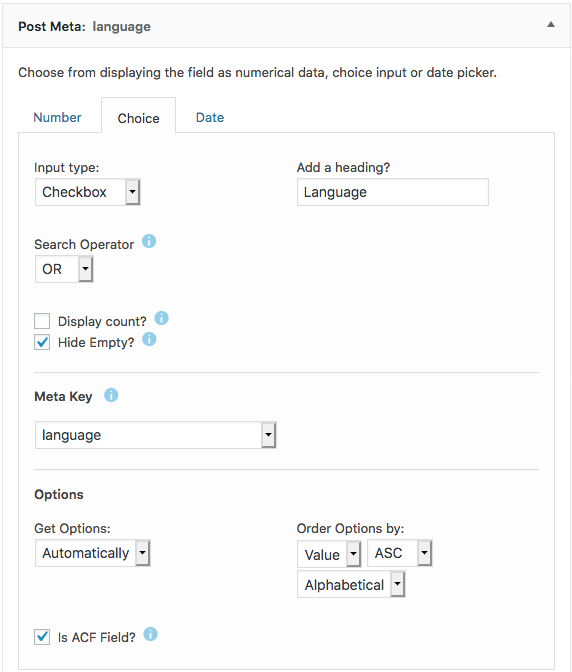
Text — This allows you to display a list of choices as a filter.
Some of the options to note:
- Input type — Each of the options will display a different type of filter. "Dropdown" & "Radio" allows the visitor to only select 1 option, while "Checkbox" & "Multi-select" allows the visitor to select multiple options.
- Add a heading? — This adds a header to the filter.
- Search Operator — When "AND" is selected, the panelists need to fulfill all the selected options e.g. when set to "AND", if the visitor selects "English" & "German" under "Language", only panelists who are fluent in English AND German will be shown. If "OR" is selected, panelists who are fluent in either English OR German will be shown.
- Hide Empty? — Once checked, if the post meta does not have any corresponding panelist, it will be hidden in the filters.
- Is ACF? — Please remember to check the is ACF Field? box. ACF stands for Advanced Custom Fields, which is a plugin used to create the panelists meta data. Anything created under the
Custom Fieldsadmin menu is done via ACF. - Order Options by: — Allows you to select the arrangement of the choices available. By default, it orders the choices alphabetically, from A-Z.